
Create a voiceover project
Choose Create a voiceover. Upload a recording or an SRT. If you want a finished video, keep the video as the primary source. Choose Advanced to review text, voices and output options.
Prepare the written text
Transcribe if needed, correct the source captions and translate them if you are changing languages. Review the target-language wording before speech preparation. The Odra example uses English narration with a Polish video.
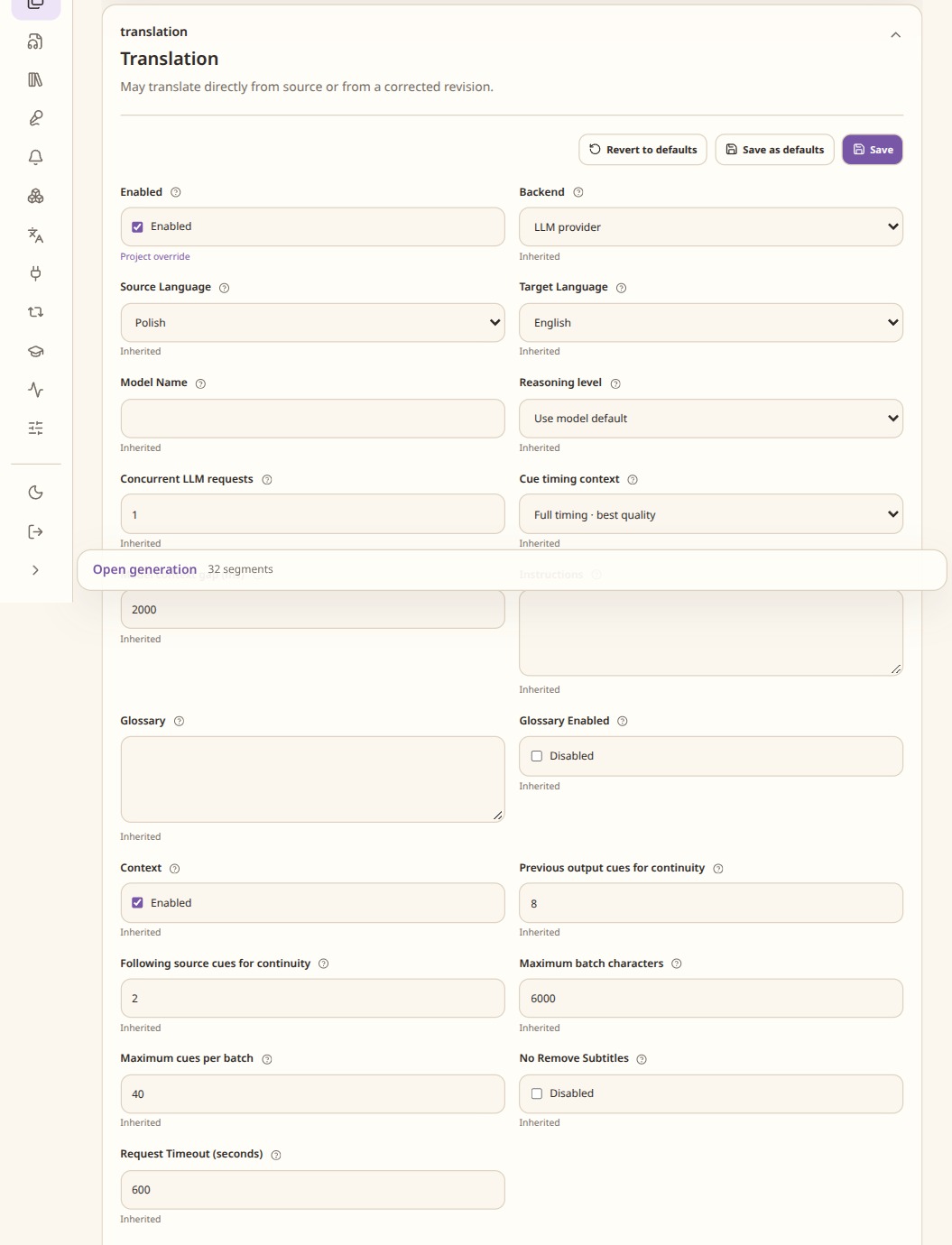
An unsaved example of the translation controls. Correction has its own settings. Prepare the speech plan and voices
Prepare speech from the selected caption version. In Voice & audio choose the model and voice. Use One narrator for a single voice or Multiple voices to bind different source speakers to voices.
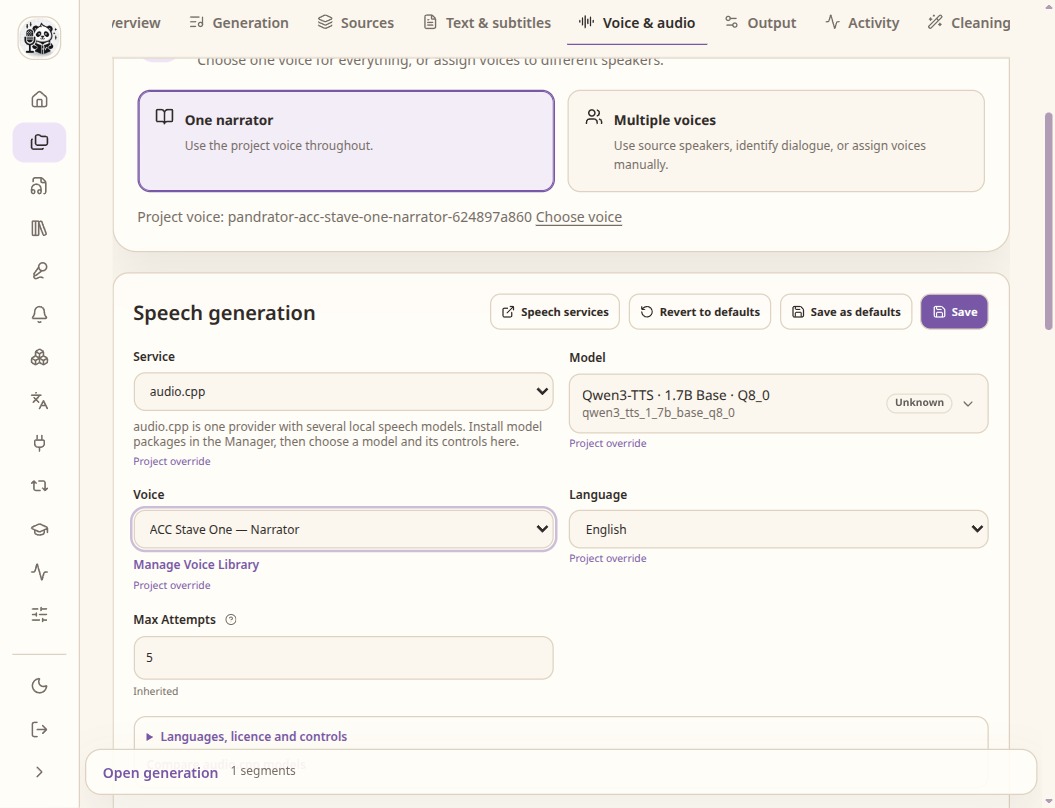
Service, model, voice and language are separate choices. Model controls vary. Generate and check timing
Generate a short section, then play it against the source. If a line is too long for its time slot, first consider shorter wording, a different take or timing settings. Inspect any overflow rather than assuming the export can fit every sentence.
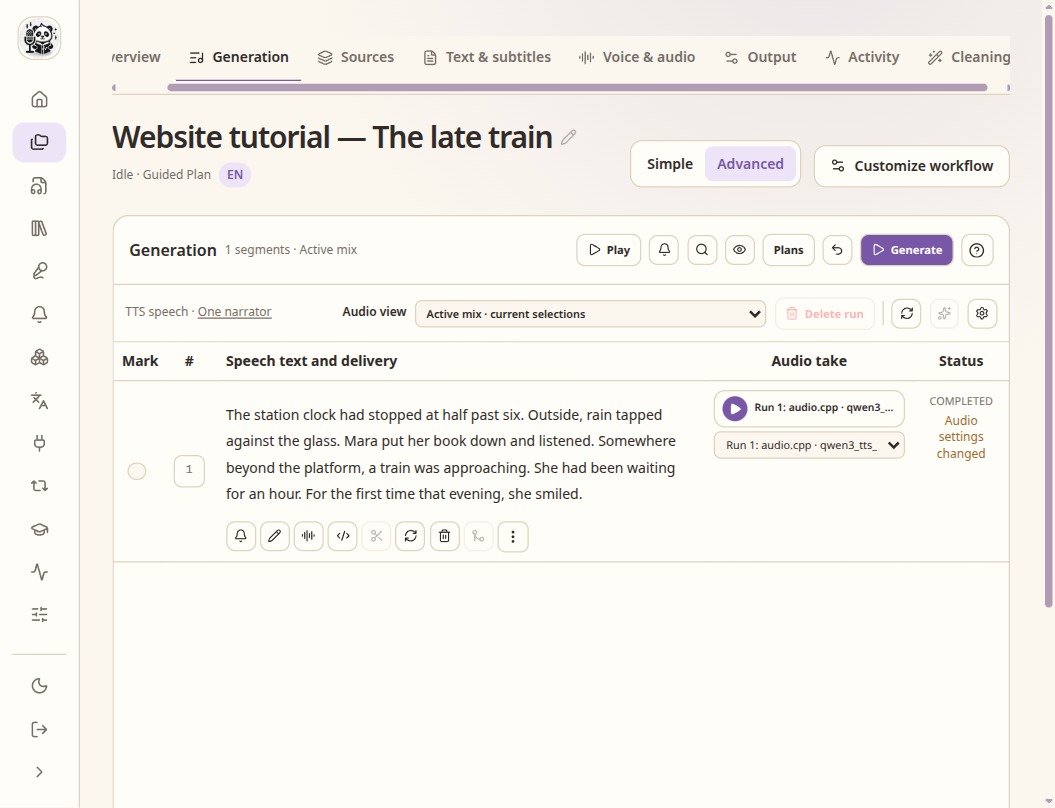
Check the speech text and the selected take before assembly. Assemble and choose the soundtrack
Assemble the selected takes. In Output choose original audio, mixed audio or dubbing only, and select source, translated or dual captions. Review the source volume and ducking for a mix. Export and download the completed file.
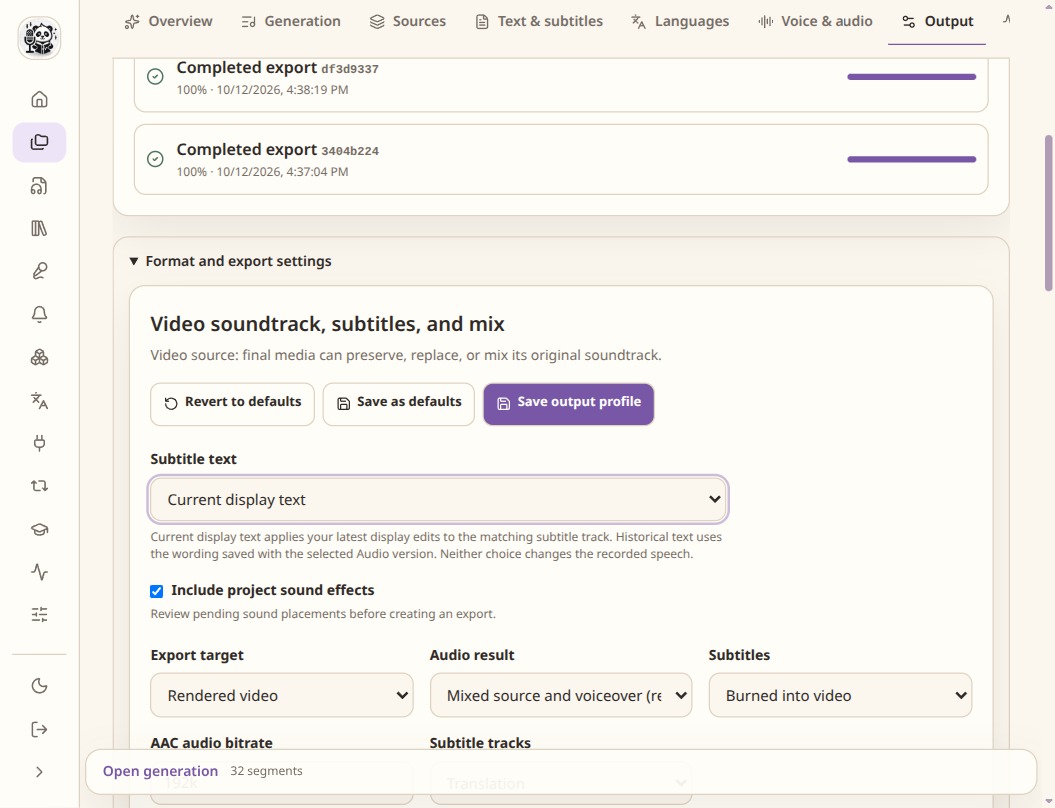
The selected audio version, written captions and soundtrack mix are separate export choices.
Check the result
- Listen with the original soundtrack present and check that the voice is intelligible.
- Check speaker changes and the end of the video.
- In published 0.12.0, captions use the text saved with the selected audio run. The development build pictured adds a Subtitle text selector for current or historical wording.