
Start an editing project
Choose Edit a recording. Attach the recording as the primary source and any captions as the transcript. When captions are attached, review their timing before choosing to replace them with transcription.
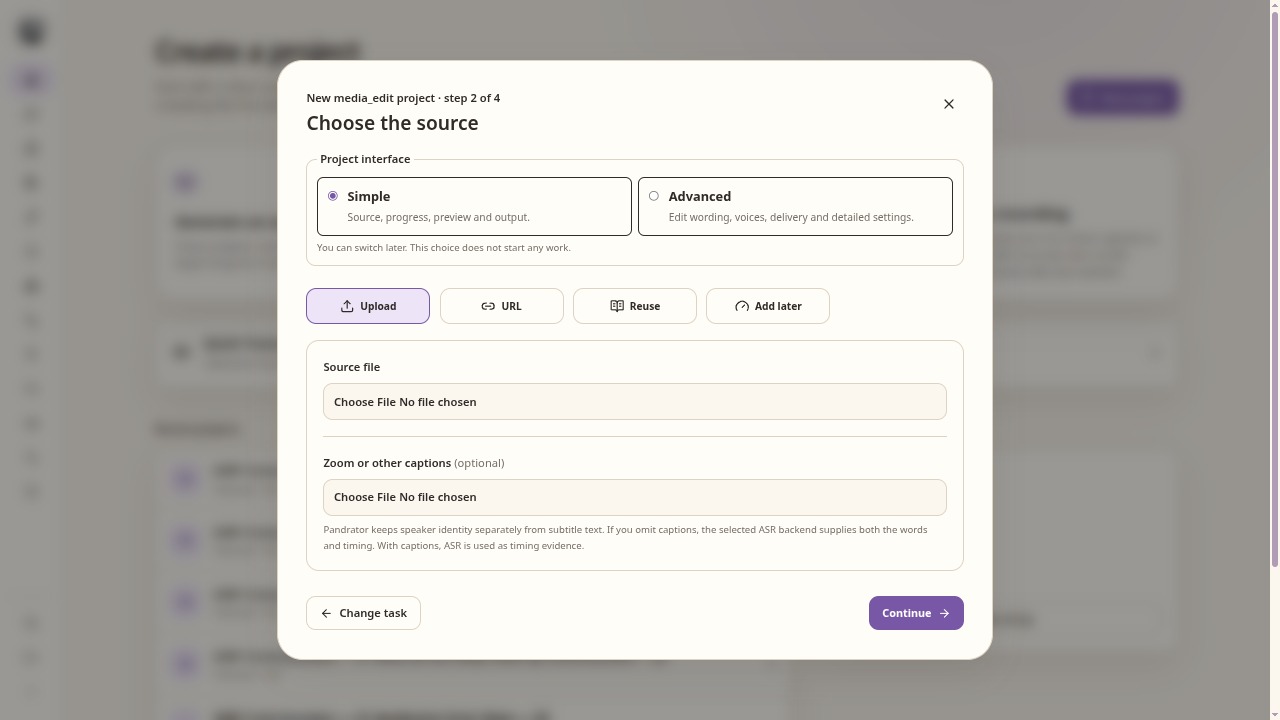
Add a recording, with existing captions when available. Prepare a cut plan
Prepare the media-edit plan from the selected transcript. If you ask for suggested cuts, state what may be removed, such as long pauses or a clearly repeated sentence. Keep the intended meaning and speaker turns.
Review cut boundaries
Play each proposed cut in context. Adjust its boundaries where needed and inspect words immediately before and after the cut. A text proposal is not a finished video edit.
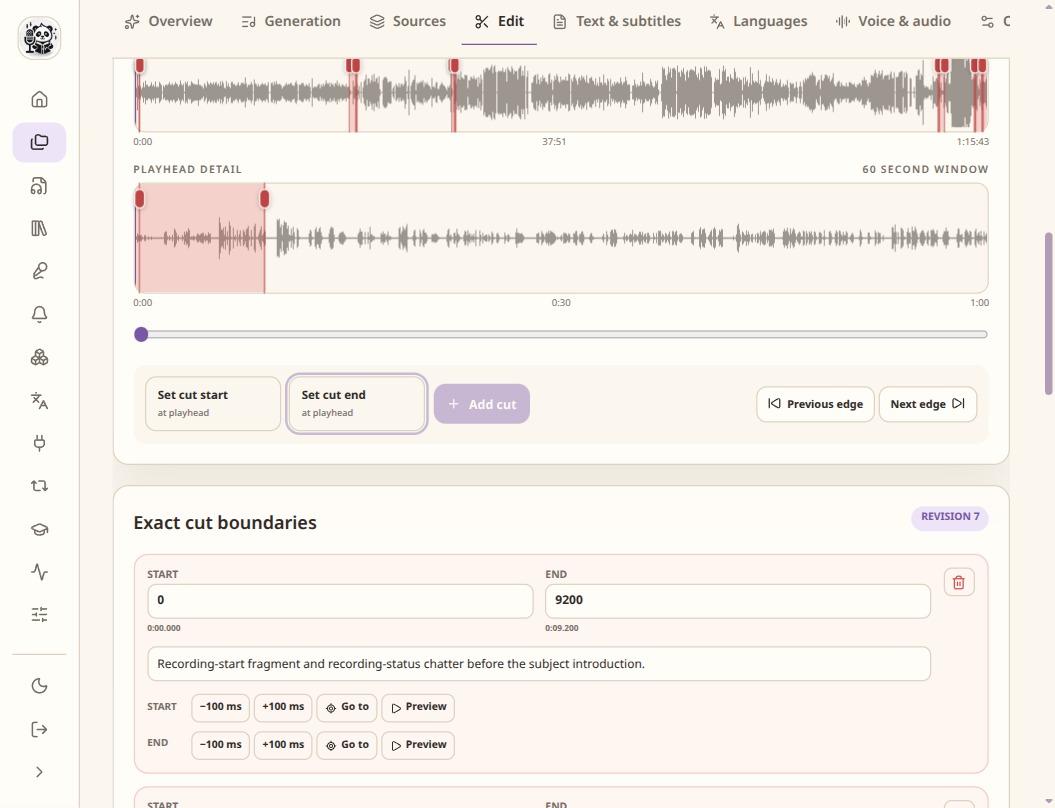
Review cut boundaries on the timeline before rendering a new file. Render before downstream work
Apply the reviewed plan and render the edit. Check the remapped captions with the edited video. For translation or a voiceover, use the edited transcript and media so generated speech follows the edited timeline.
Check the result
- Play both sides of every substantial cut.
- Check audio/video synchronisation after several cuts and near the end.
- Keep the original recording and caption file.