
Choose the source
Choose Create subtitles on the home screen. Upload audio or video, reuse a source, or start from an SRT. An existing SRT already contains timings, so you can skip transcription.
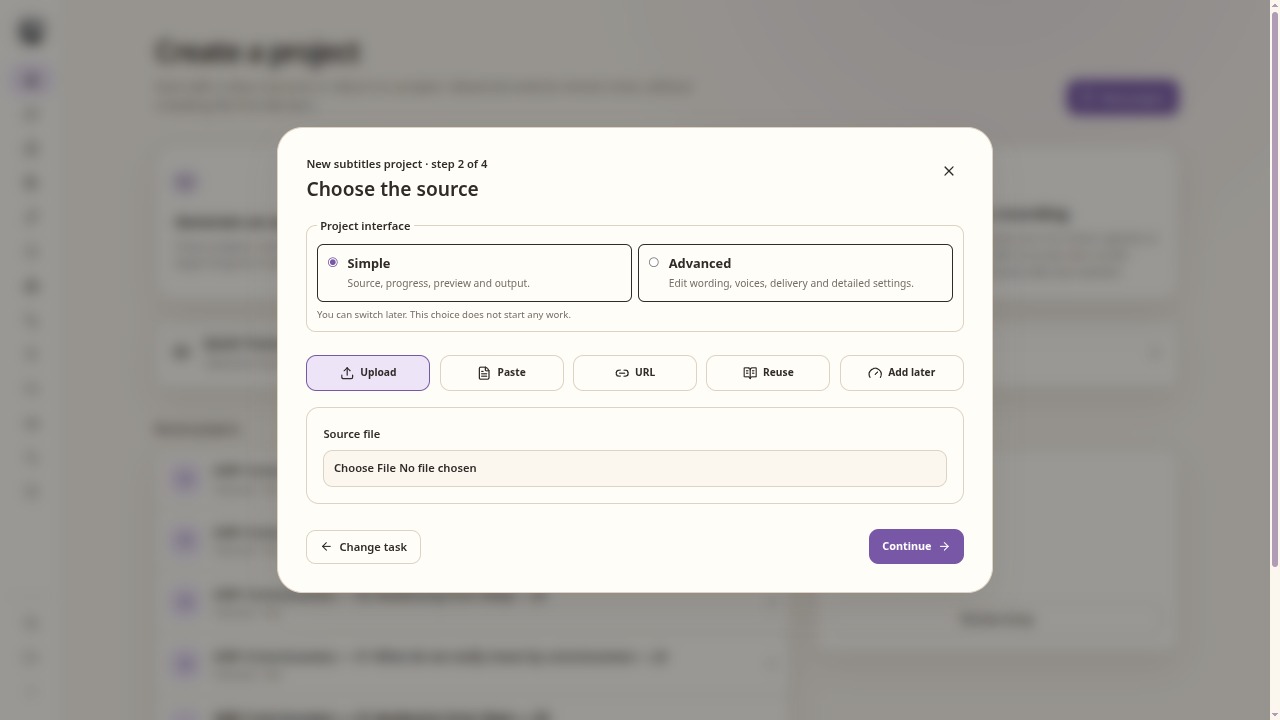
Start from media for transcription, or from an existing subtitle file. Set languages and processing
Choose the source language, transcription engine and optional target language. Whisper, Parakeet and Qwen3-ASR have different language and timing coverage. Check the model matrix before choosing; recognising a language does not always mean word timestamps are available.
Run transcription and review
Run Transcribe, then open Text & subtitles. Play the source while checking names, missing words, punctuation and speaker changes. Inspect doubtful words instead of silently guessing.
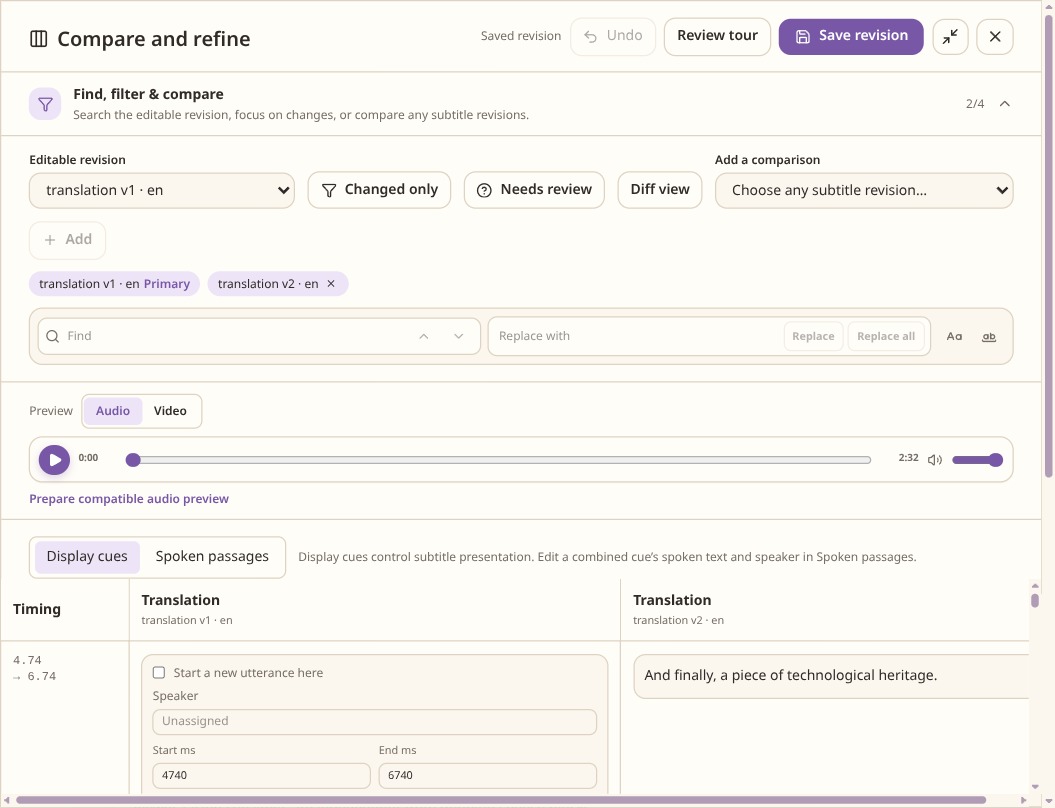
Check which revision is editable and which is a comparison before making changes. Correct or translate if needed
Correction keeps the source language. Translation creates a separate target-language version. Select the version you intend to export and check the start and end of longer passages. Use normal written names and numbers in captions.
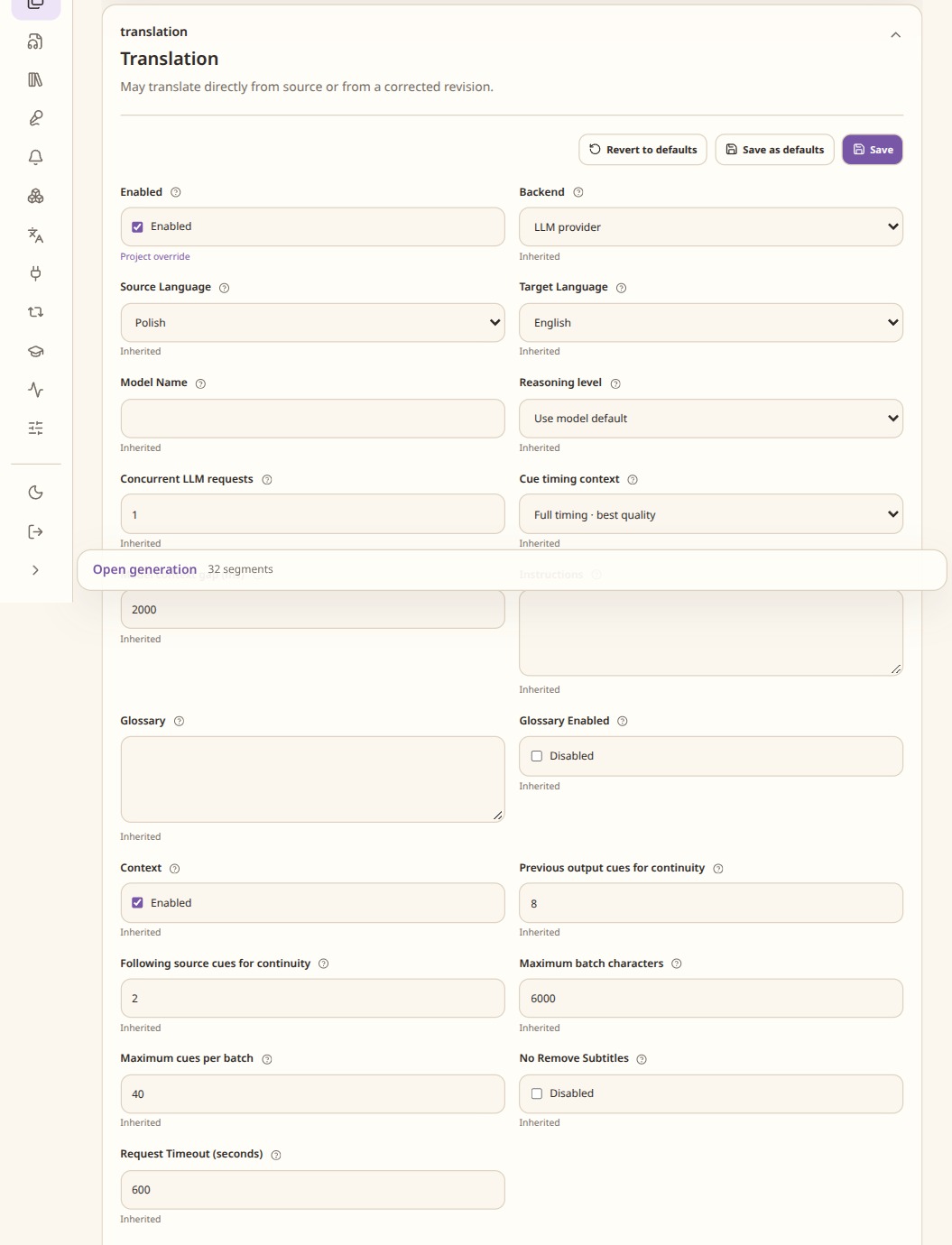
An unsaved example of the translation controls. Correction has its own settings. Choose the subtitle output
In Output, select subtitles and SRT or VTT. For a video, choose a selectable subtitle track or burn captions into the picture. Burned captions are always visible; a separate VTT is useful for a website video player.
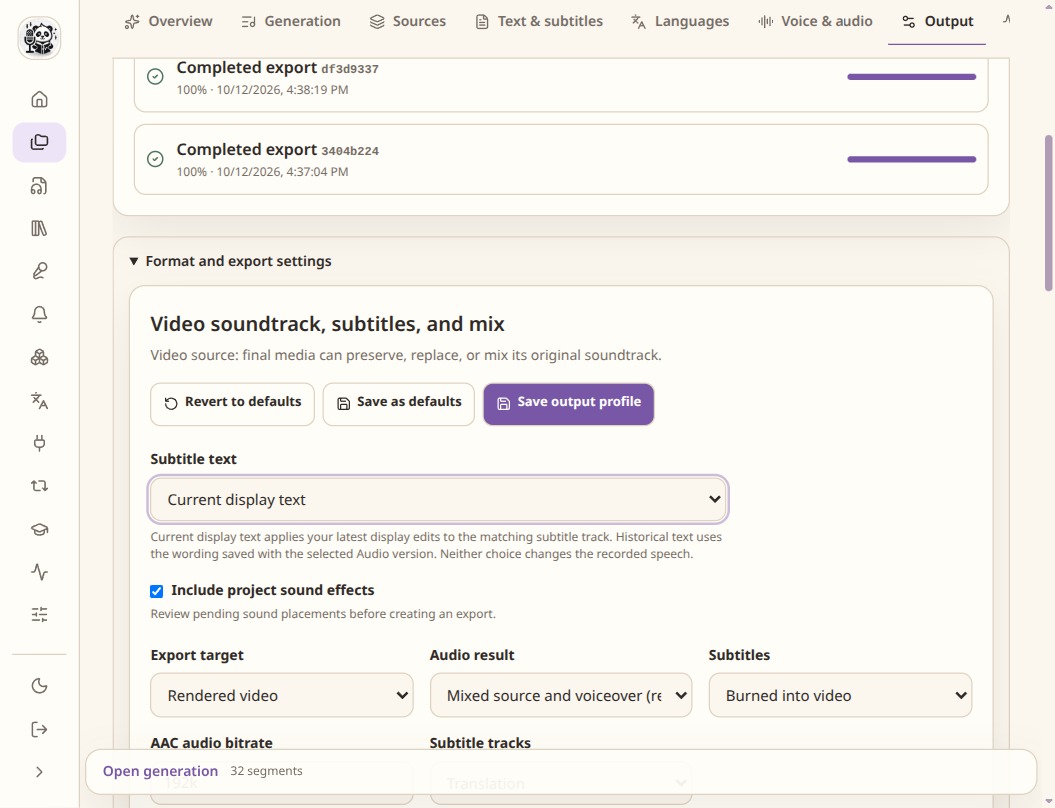
The selected audio version, written captions and soundtrack mix are separate export choices.
Check the result
- Play the beginning, a fast passage and the ending with captions enabled.
- Check reading speed, line breaks and gaps between cues.
- Keep the corrected source and translated captions as separate versions.