
Create an audiobook project
On the home screen, choose Generate an audiobook. Upload your file or choose Paste. Select Advanced if you want to edit the wording and voices as you go. You can change the interface later.
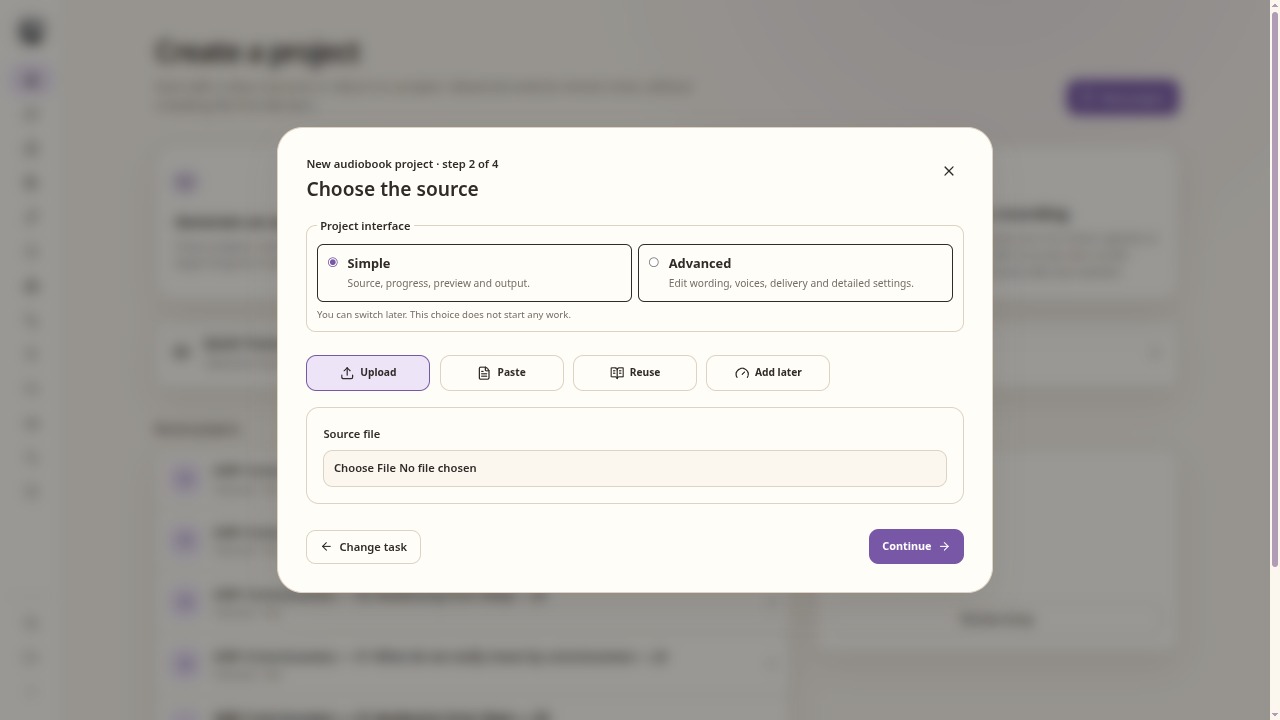
Choose a source and the interface mode before creating the project. Extract and check the text
Run Clean source. Use Preview selected in the Clean source stage to read its result. Cleaning contains OCR and cleanup settings. Remove material you do not want read aloud, such as a contents page or repeated headers. Your uploaded file is retained.
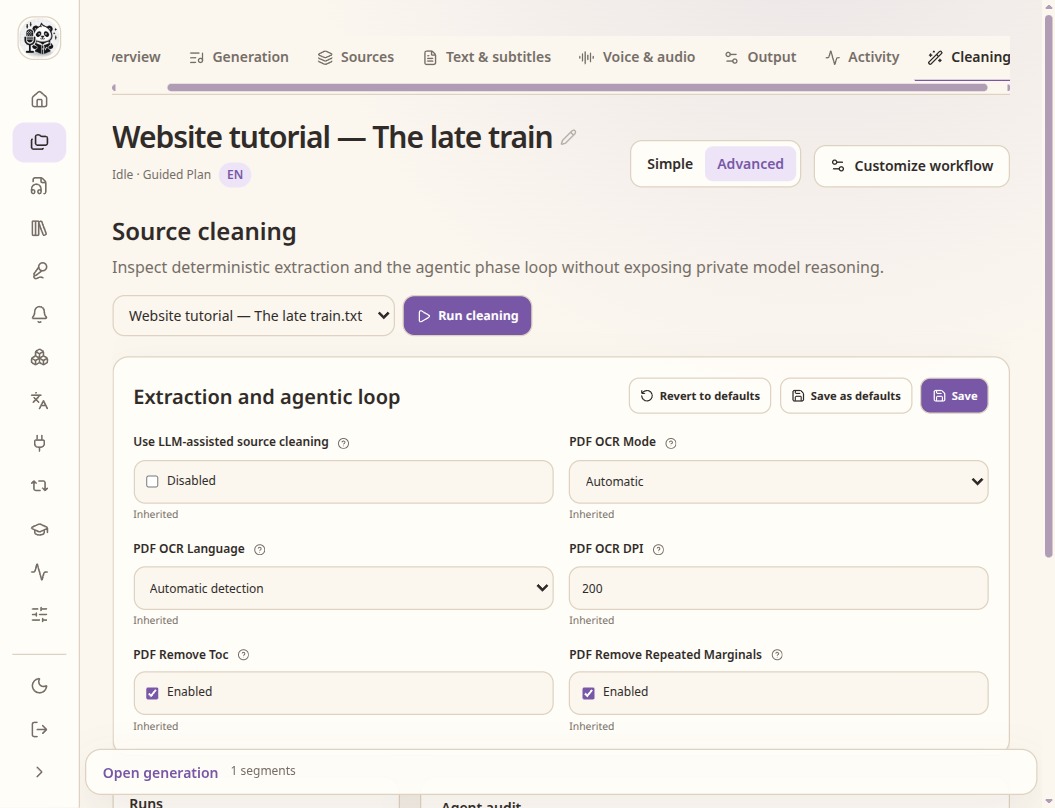
Cleaning contains extraction and OCR settings. Read the selected result from the workflow preview. Prepare the speech plan
Run Segment narration, then open Generation. Check the first few blocks and any chapter starts. Segmentation divides the text; it does not generate audio or require an LLM.
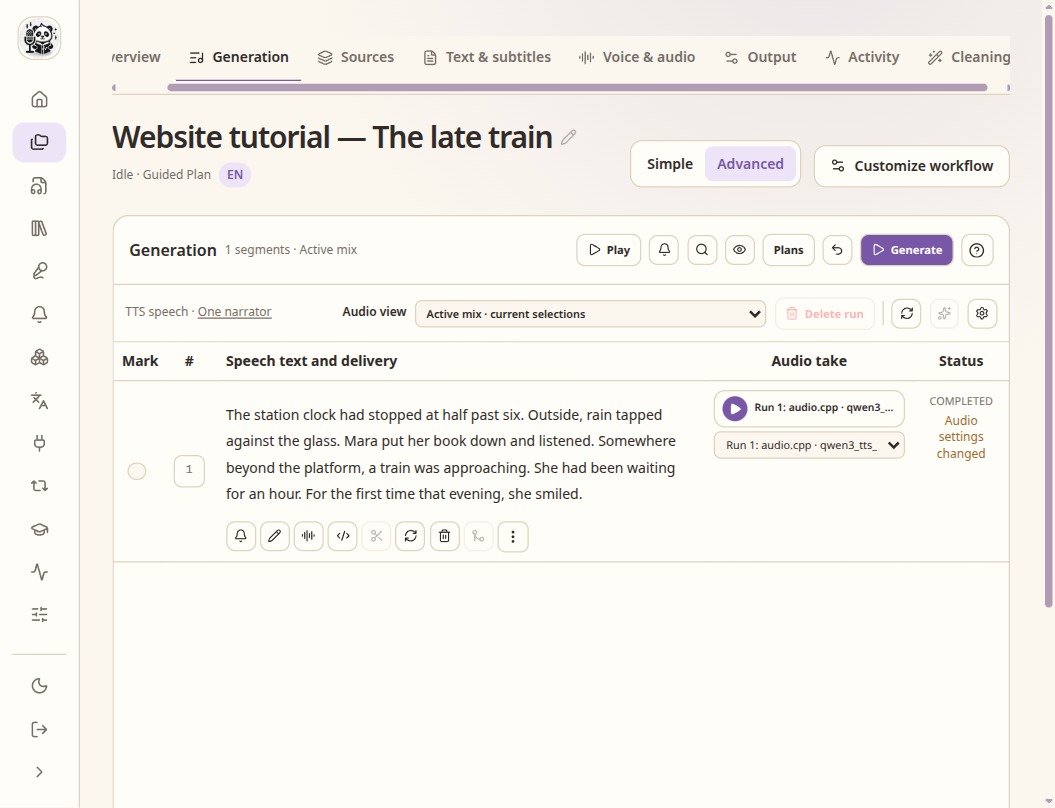
Check the speech text and the selected take before assembly. Choose a voice and generate a small section
Open Voice & audio. Choose the service, exact model, narration language and voice. A cloning model needs a prepared reference. Generate a few blocks first, listen, and regenerate only the lines that need another take.
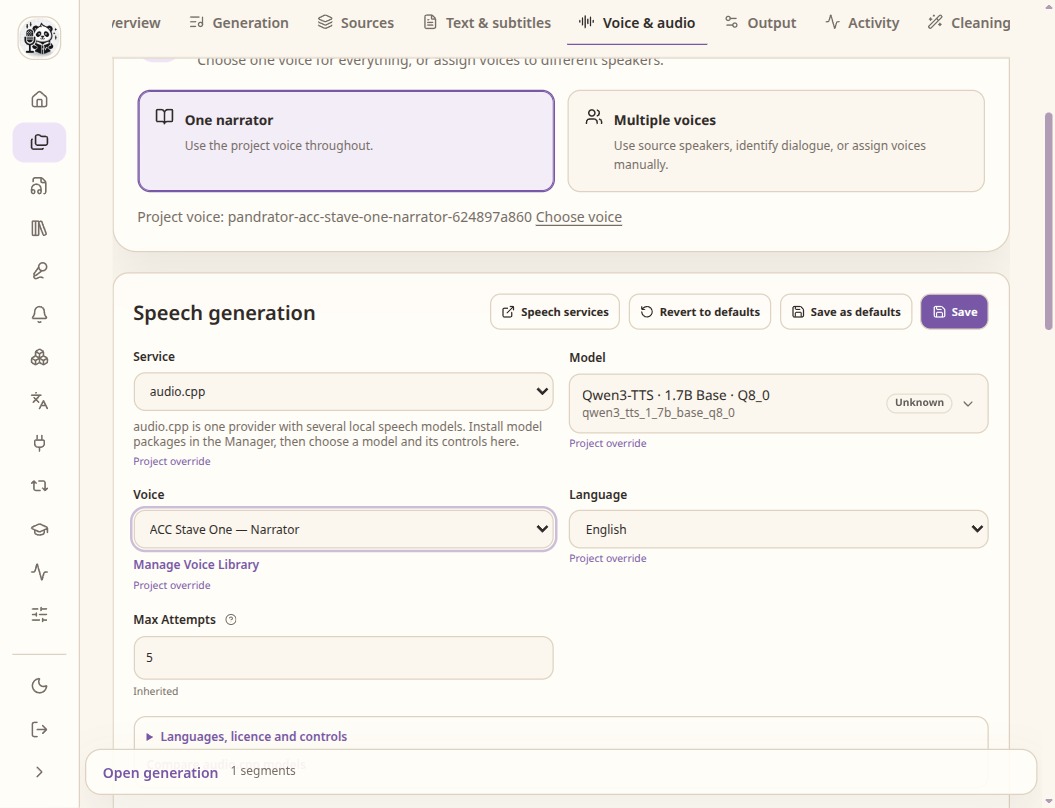
Service, model, voice and language are separate choices. Model controls vary. Assemble and export
Once the selected takes are ready, assemble the audio. In Output, choose M4B for a book with chapters, cover and metadata, or WAV, MP3, Opus or FLAC. Download the completed output rather than a single generation take.
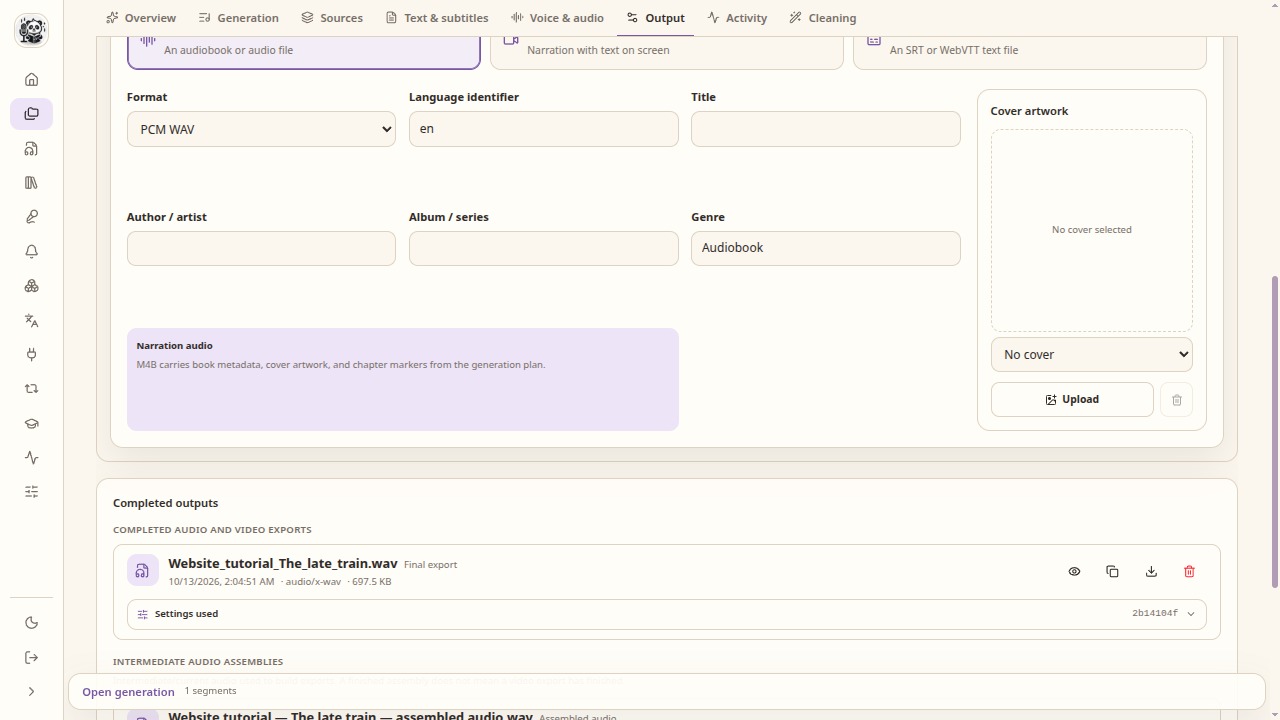
Choose the output format and book metadata, then download a completed export.
Check the result
- Listen to the start, a chapter boundary and the last line.
- Check names and numbers before generating the full book.
- Keep speech-only pronunciation changes separate from the written text.
A passage to try
This original English passage is also used in the audio examples.
The station clock had stopped at half past six. Outside, rain tapped against the glass. Mara put her book down and listened. Somewhere beyond the platform, a train was approaching. She had been waiting for an hour. For the first time that evening, she smiled. Listen to the examples